AI-MindMap Quick Start: Your First Mind Map in Microsoft Teams
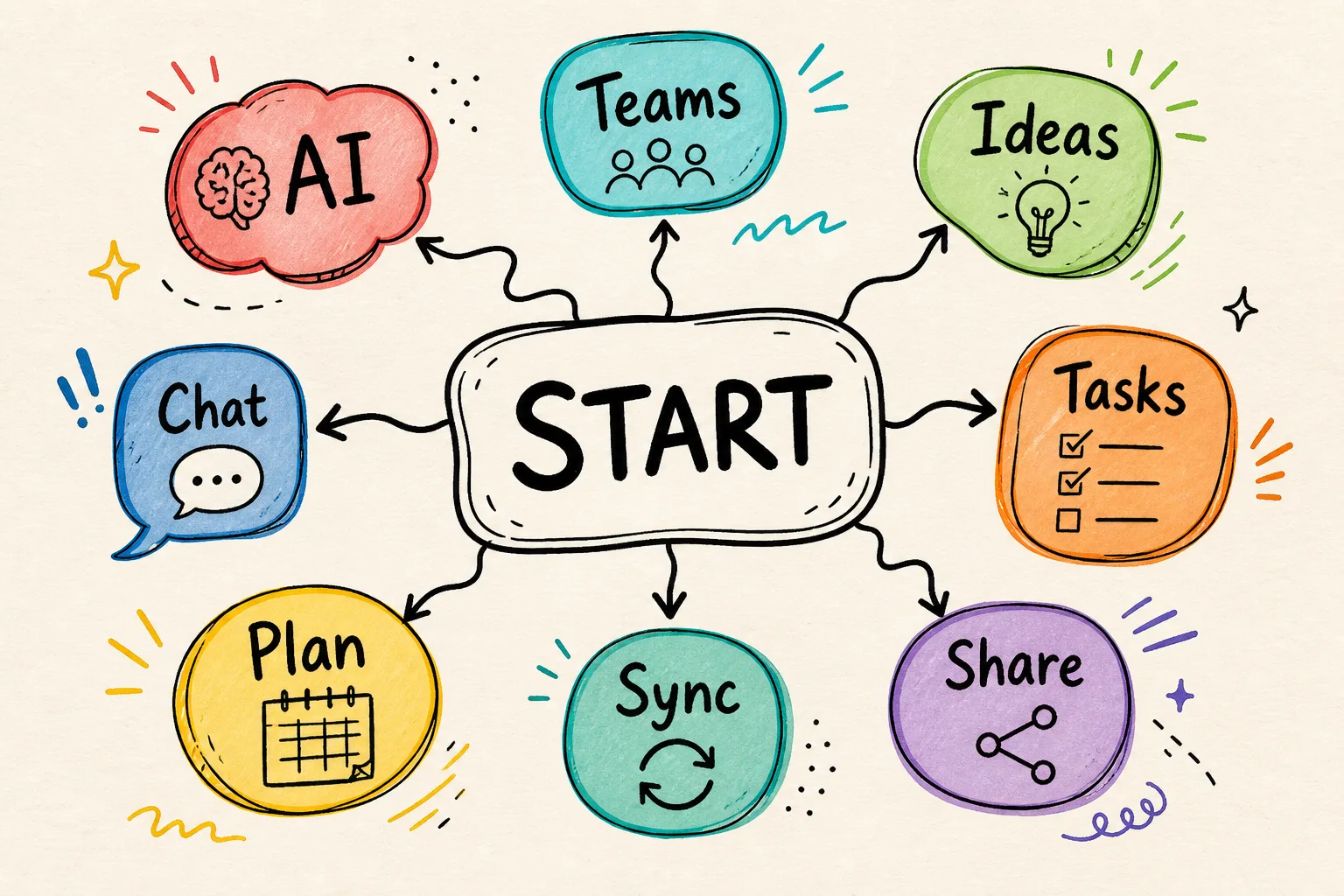
With AI-MindMap you can create your first mind map in under five minutes - right inside Microsoft Teams, with no separate tool and no extra login. You describe your topic in natural language, the AI generates a structured map, and you refine it in the editor. This guide walks you through every step: from signing in to your first AI-generated mind map and sharing it with your team.
How do I get started with AI-MindMap in Microsoft Teams?
AI-MindMap runs entirely within Microsoft 365. There is no separate registration: you sign in via single sign-on with your existing Microsoft work account.
- Open AI-MindMap for free in your browser or add the app to Microsoft Teams.
- Sign in with your Microsoft 365 account - that's it, no further setup needed.
- Click "New mind map" to start with a blank map, or jump straight into the AI assistant.
Creating your first mind map with the AI assistant
The fastest route to a finished structure is the AI assistant. Instead of adding nodes one by one, you simply describe your topic:
- Open the AI assistant and choose the "New map" mode.
- Describe your topic in one sentence, for example: "Project plan for rolling out new software, with phases, tasks and risks."
- The AI generates a structured mind map with up to 100 nodes in seconds.
- Review the suggestions and apply them with one click.
Before every AI action, AI-MindMap automatically creates a version snapshot. You can experiment freely and return to any earlier state at any time.
Expanding and refining your mind map
After the first draft, you continue working in the editor - via keyboard, drag-and-drop, or with AI again:
- Expand: Select a node and let the AI suggest fitting subtopics.
- Refine: Select a branch and have its structure rephrased or improved.
- Prompt templates: Use ready-made templates such as brainstorming, meeting agenda, project planning or SWOT analysis.
Sharing with your team
Mind maps show their real value in a team. Share your map with colleagues, assign roles and work on the same structure simultaneously - with live cursors and comments. If your team manages tasks in other tools, connect the map via integrations to timeghost Project Board, Azure DevOps, Jira, GitHub, Microsoft Planner or To Do and sync tasks bidirectionally.
Conclusion
Getting started with AI-MindMap takes just a few minutes: sign in, describe your topic, refine the map, share it. The AI assistant in particular removes the time-consuming groundwork, so you can focus on content instead of formatting. Give it a try: test AI-MindMap for free - right inside Microsoft Teams.
Sources and further information
This article is for general information purposes. The content was created and reviewed editorially. Last updated: 2026-08-07.
Frequently asked questions
Do I need a separate account for AI-MindMap?
No. AI-MindMap uses single sign-on via Microsoft 365. You sign in with your existing work account - no separate password or registration required.
How does the AI create a mind map from a description?
You describe your topic in natural language, for example "marketing plan for a product launch". The AI analyses the description and generates a structured mind map with up to 100 nodes in seconds, which you can then edit freely.
Can I undo an AI action?
Yes. Before every AI action, AI-MindMap automatically creates a version snapshot. You can restore any earlier state with a single click from the version history.
About the Author

timeghost Team
Editorial Team
The timeghost team builds AI-MindMap and writes about mind mapping, AI-assisted collaboration and productivity in Microsoft 365.
Share article